You can usually tell a team needs project management software by the questions in the group chat: “Who’s doing this?” “Wasn’t that due yesterday?” “Which version is the latest?”
Project management software gives everyone a shared view of who is doing what, by when. The market is crowded, though, and the wrong tool can add friction instead of removing it. This guide walks you through the features, methods and questions that lead to a good choice.
Table of Contents
- What Project Management Software Does
- Match the Tool to How Your Team Works
- Key Features to Evaluate
- Understanding Pricing Models
- Step-by-Step: How to Choose
- Rollout Tips That Improve Adoption
- Common Mistakes to Avoid
- Security and Data Considerations
- Run a Two-Week Pilot Before Committing
- Project Management Questions
- Picking a Tool That Sticks
What Project Management Software Does
At a basic level, project management tools help teams plan work, assign responsibilities, track progress and communicate in context. Most tools let you:
- Break projects into tasks and subtasks
- Assign owners and due dates
- Visualize work in lists, boards, timelines or calendars
- Attach files and comment directly on tasks
- Track progress with dashboards and reports
- Automate routine updates and notifications
Match the Tool to How Your Team Works
Kanban Boards
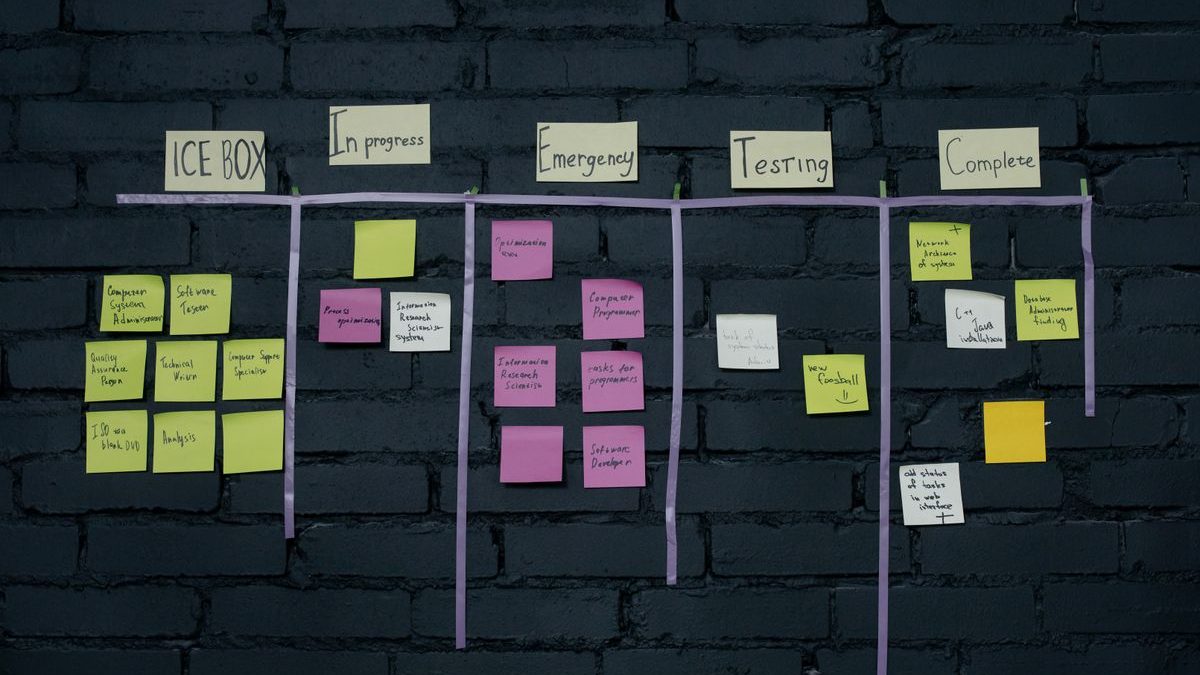
Kanban boards display tasks as cards that move across columns such as To Do, In Progress and Done. They are intuitive and work well for ongoing workflows like content production, support queues and marketing campaigns.
Gantt Charts and Timelines
Gantt charts show tasks on a timeline with dependencies, making them ideal for projects with fixed deadlines and sequential steps, such as construction, events or product launches.
Agile and Scrum Features
Software development teams often need sprints, backlogs, story points and burndown charts. Some tools are built specifically for agile workflows.
Lists and Calendars
Simple task lists and calendar views suit small teams that want clarity without complexity.
Key Features to Evaluate
| Feature | Why It Matters | Who Needs It Most |
|---|---|---|
| Multiple views (list, board, timeline) | Lets each person work their way | Mixed teams |
| Task dependencies | Prevents bottlenecks and delays | Complex projects |
| Automation | Reduces repetitive updates | Busy teams |
| Time tracking | Supports billing and capacity planning | Agencies, consultants |
| Resource and workload management | Prevents burnout and overbooking | Managers of larger teams |
| Client or guest access | Shares progress externally | Agencies, freelancers |
| Integrations | Connects chat, email, files and code | Nearly everyone |
| Mobile apps | Updates on the go | Field and remote teams |
Well-known platforms include Asana, Trello, monday.com, ClickUp, Jira, Basecamp, Notion and Microsoft Planner, among many others. Features and plan structures change regularly, so compare current details directly on each vendor’s website.

Understanding Pricing Models
Most tools use per-user monthly pricing with tiered plans. Free plans are common but usually limit users, storage, automations or advanced views. When comparing:
- Check which features you need are locked behind higher tiers
- Ask whether guests or clients count as paid users
- Look for annual billing discounts
- Consider nonprofit or startup programs if you qualify
Step-by-Step: How to Choose
- Define the problems. Write down what isn’t working today: missed deadlines, unclear ownership, too many meetings.
- Identify your users. Include everyone who will touch the tool, from executives to contractors.
- Pick your must-have views and features. Prioritize based on your workflows.
- List your integrations. Think chat apps, file storage, calendars, CRM and developer tools.
- Shortlist three tools. Read recent reviews from teams of a similar size and industry.
- Run a pilot. Test with one real project for two to four weeks.
- Gather feedback. Ask testers what slowed them down and what helped.
- Decide and roll out. Choose the tool with the best adoption, not necessarily the most features.
Rollout Tips That Improve Adoption
Start Simple
Set up one or two project templates and a few clear rules. You can add automations and custom fields once people are comfortable.
Define Conventions
Agree on naming conventions, how to use statuses, what counts as done and where discussions should happen. Consistency makes the tool useful.
Move Conversations Into Tasks
Encourage comments on tasks instead of side emails. This keeps context in one place and reduces “where is that file?” questions.
Lead by Example
When managers update tasks and refer to the tool in meetings, the team follows.
Review and Refine
After a month, look at what is working and remove anything that adds friction.
Common Mistakes to Avoid
- Choosing the most powerful tool when the team needs something simple
- Skipping training and expecting everyone to figure it out
- Running the new tool in parallel with old spreadsheets indefinitely
- Over-customizing before understanding real needs
- Ignoring security settings, permissions and guest access controls

Security and Data Considerations
Project tools often hold confidential plans, client information and files. Enable single sign-on or two-factor authentication where possible, set permissions carefully, review guest access regularly and confirm how the vendor handles backups and data export.
Run a Two-Week Pilot Before Committing
Feature lists only tell you so much. The best test is a real project.
Pick a small, real piece of work that takes about two weeks, like launching a newsletter or preparing a client proposal. Set it up in your top one or two tools and have the actual team use them.
During the pilot, notice:
- How long it took to set up the project
- Whether people updated tasks without being reminded
- How easy it was to see what was late or blocked
- Whether notifications were useful or overwhelming
- How well the mobile app worked for people away from their desks
At the end, ask the team which tool they’d keep. Their answer matters more than any comparison chart, because they’re the ones who’ll be living in it every day.
Project Management Questions
What is the easiest project management tool for beginners?
Simple Kanban-style tools are usually the easiest to learn. The best choice depends on your team’s needs, so try a few free plans.
Do small teams need paid project management software?
Many small teams start on free plans. Paid plans become worthwhile when you need automation, timelines, more users or advanced reporting.
Can project management software replace meetings?
It can reduce status meetings by making progress visible, but planning and problem-solving discussions remain valuable.
How do I get my team to actually use the tool?
Keep the setup simple, provide training, make it the official place for task updates and have leaders use it consistently.
Picking a Tool That Sticks
The right project management software makes work visible, keeps everyone aligned and reduces the chaos of scattered communication. Focus on how your team actually works, test a few options with a real project and prioritize adoption over feature lists. A tool your team embraces will deliver far more value than one that looks impressive in a demo.